
According to Steam, I’ve played thousands of hours of Zombie Panic! Source. It’s one of my favorite Source mods, and zombies are my guilty pleasure.
This week the original Half Life mod released on Steam after over 20 years of existence, and I never really got a chance to play it originally. It’s been a blast!
Both games heavily feature asymmetric gameplay that just feels great when everything comes together. Humans have a high-risk / high-reward aspect to their gameplay. They can pick up powerful weapons, but have a limited capacity, and picking up too much slows you down. Let too many zombies get too close, and you’re done for – they can take a lot of hits! Luckily the survivors can panic wildly, throwing all their items and getting a temporary boost so they can run away and live on just a little while longer…
There aren’t that many servers (yet?), so I was curious what it would take to set one up from scratch. It’s not the easiest way to set up a dedicated server, but it was fun!
The Process
Here’s the repo I came up with: https://github.com/ty-porter/zpds-docker
The idea is this software is 20 years old at this point, so it takes a bunch of 32-bit dependencies that are a little awkward to work with. You have to install steamcmd to manage the app and a Steam runtime you’ll need. There’s a guide on Steam you can follow from the developers, which is helpful but those types of things rarely go all the way. There’s some weird quirks with Steam in general, like the formatting of a magic file that has the app ID for the server in a pretty strict format.
You have to expose a bunch of TCP/UDP ports which communicate with custom protocols, so that’s fun to deal with. You can’t just ping the container and have it respond (more on that later).
I made sure to set it up as best I can to make sure this doesn’t have credentials in it, since you have to have a real Steam account with a purchased copy of Half Life. I had to disable 2-factor auth (Steam Guard) to get this to work, so I can’t say this isn’t sketchy.
Once everything is set up, it’s a breeze to run a local server with docker compose up --build -d. Cloud deployment is a bit more involved, but doable.
The D’oh Moment
No project is complete without a giant facepalm.
Mine was when I finally got the server up and running and could see valid logs, but there was no entry in the server browser. You simply couldn’t connect to the waiting server, even directly. When I say I tried everything to fix this, I mean I tried everything. I thought it could be a port-forwarding issue either on the router or ISP, or a firewall problem, or a port that I didn’t expose in the container, or Docker networking issues that I’ve troubleshot before.
In the end… I found out the client also opens a connection on UDP 27015 (the game port), and there was a conflict. So the simple fix – just increment the port!
Oh and I also banned myself from my own server because I typo’d the rcon (remote connection) password and forgot to allow failures. Whoops.
Cloud Deployment & First Rounds
I set this up on a Digital Ocean droplet with 1 CPU core / 2 GB RAM out of a New York datacenter. This is probably overkill, but I can always tune it down. It’s not super expensive – around $30/mo all-in. That’s including a persistent IP, container registry big enough for my container, and the droplet itself.
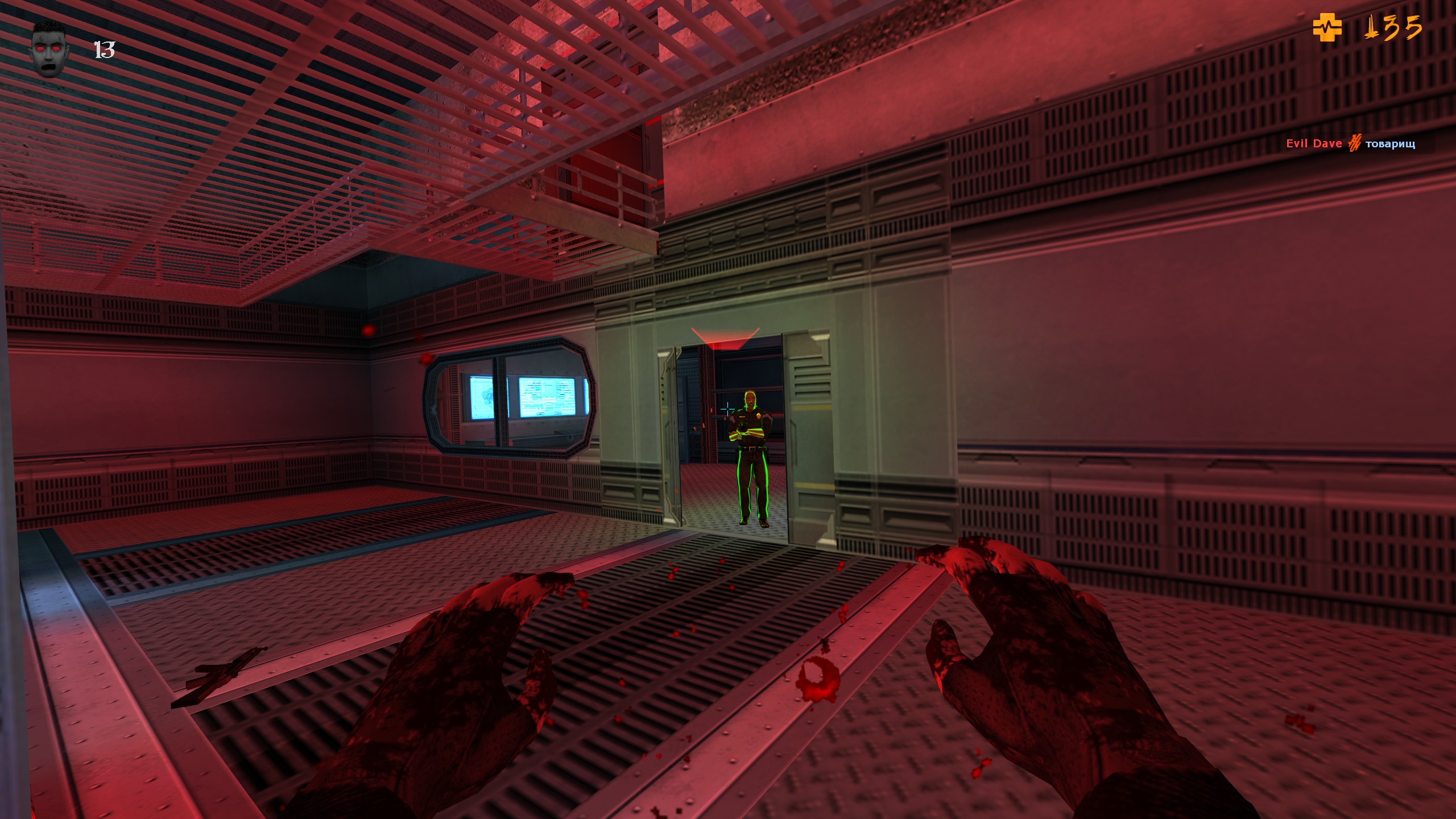
It was all worth it to have a full 16-person server play together and try to stave off the horde within a few minutes of starting up!

Next Steps
This is really a pretty vanilla installation. There’s mods you can install that help a lot with server administration and some other niceties like letting people see how long you have left to play the map before it rotates or vote on what map to choose next. Like I mentioned I managed to get myself on a 12 hour administration ban for typoing a password, which is really bad if I need to SSH to the droplet and manipulate the server directly.
But, this is a great baseline to get started and I’m really happy how it turned out!
That’s all for now. Thanks for reading!